
Windows
Right-click your files, then “Cerclic”. With the Microsoft Store version, it shows up directly in the Windows 11 right-click menu.
Ctrl +Alt + Space
A wheel of actions opens around your cursor, for your images, PDFs, videos and audio. No app to open.
Select one or more files. On Windows: right-click, then “Cerclic”, or Ctrl + Alt + Space. On Mac: right-click, Quick Actions, “Cerclic”, or Shift + Command + Space. The wheel of actions opens around your cursor.
Crop, rotate, resize, compress, convert. iPhone HEIC photos become JPG.
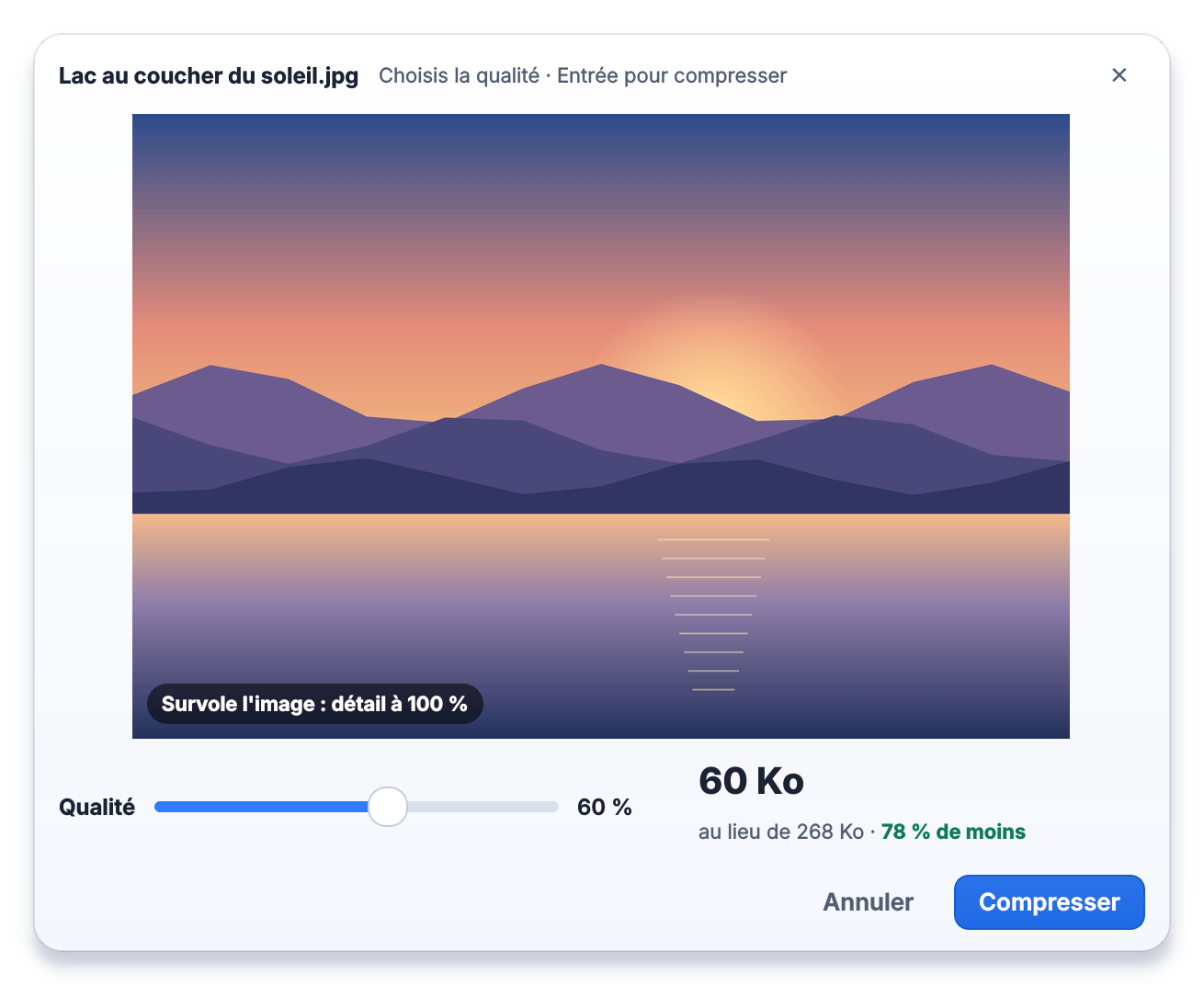
Drag the slider and the new size appears before you confirm. A magnifier lets you check the quality.
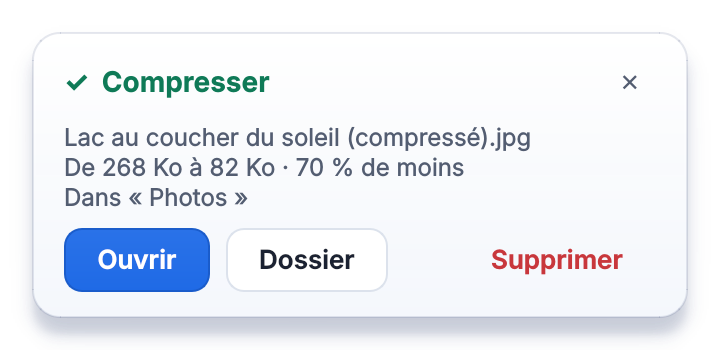
Measured with Cerclic 0.7 on the demo photo: 268 KB to start, 60 KB at 60% quality, 78% smaller.
Draw or import your signature. Merge and reorder pages, set a password, convert to Word.
Trim, compress with a size estimate, convert to MP4 or GIF, extract the audio as MP3.
Formats: Square 1:1, Portrait 4:5, Grid 3:4, Story 9:16 (1080 × 1920 px, full phone screen: Story, Reels, TikTok, YouTube Shorts), Landscape 16:9, Banner 1.91:1. You choose the framing, or a blurred, white or black background so nothing gets cut.
Right-click your files, then “Cerclic”. With the Microsoft Store version, it shows up directly in the Windows 11 right-click menu.
Ctrl +Alt + Space
Right-click, Quick Actions, then “Cerclic”. Or drop your files on the Cerclic icon.
Shift + Command + Space
You can change the shortcut in the settings.
Windows 10 (version 2004 or later) or Windows 11, 64-bit.
Download the installerWith the installer, Windows may show “Windows protected your PC”: click “More info”, then “Run anyway”.
macOS 12 (Monterey) or later, Mac with Apple silicon (M1 or later).
Download the .dmgCerclic isn’t verified by Apple yet. The first time you open it, click “Done” (not “Move to Trash”). Then open System Settings, go to Privacy & Security, scroll down and click “Open Anyway”. You only do this once.
No. Cerclic runs entirely on your computer and doesn’t use the internet: your images, PDFs, videos and audio never leave it. There’s no account and no ads.
Never. Every action creates a new file, saved next to the original, in a folder you choose, or wherever you pick each time.
With the Cerclic-Windows.exe installer, Windows may show “Windows protected your PC”. Click “More info”, then “Run anyway”. The Microsoft Store version (coming soon) shows no warning and updates itself.
Open the .dmg, drag Cerclic to the Applications folder, then open it. Since it isn’t verified by Apple yet, macOS blocks it the first time: click “Done”, not “Move to Trash”. Then open System Settings, go to Privacy & Security, scroll down and click “Open Anyway”. You only need to do this once per Mac. On macOS 12, it’s System Preferences, then Security & Privacy.
Yes, in the Cerclic settings. By default, it’s Ctrl + Alt + Space on Windows and Shift + Command + Space on Mac.
Cerclic comes in 10 languages: English, French, Spanish, German, Italian, Portuguese (Brazil), Arabic, Turkish, Simplified Chinese and Japanese. It uses your computer’s language, or English if Cerclic doesn’t have yours. To pick another one: Cerclic settings, General, Language.